RGB to CMYK Converter
Type RGB values or a hex code, or pick a color, to get the CMYK percentages and total ink coverage.
Recent
Your last 10 settings, saved only in this browser. Nothing is uploaded.
This RGB to CMYK converter turns one red, green, blue color into cyan, magenta, yellow and black percentages using the standard formula. Enter a color as RGB values, a hex code, or pick it with the color picker, and the tool shows the CMYK result, total ink coverage and a color swatch.
Everything runs in your browser, so nothing you enter is uploaded. The tool is free and needs no sign-up. It is a formula conversion, which makes it useful for quick checks, design planning and batch lists of colors. For print-critical color, though, you will need a color-managed conversion using your printer’s ICC profile.
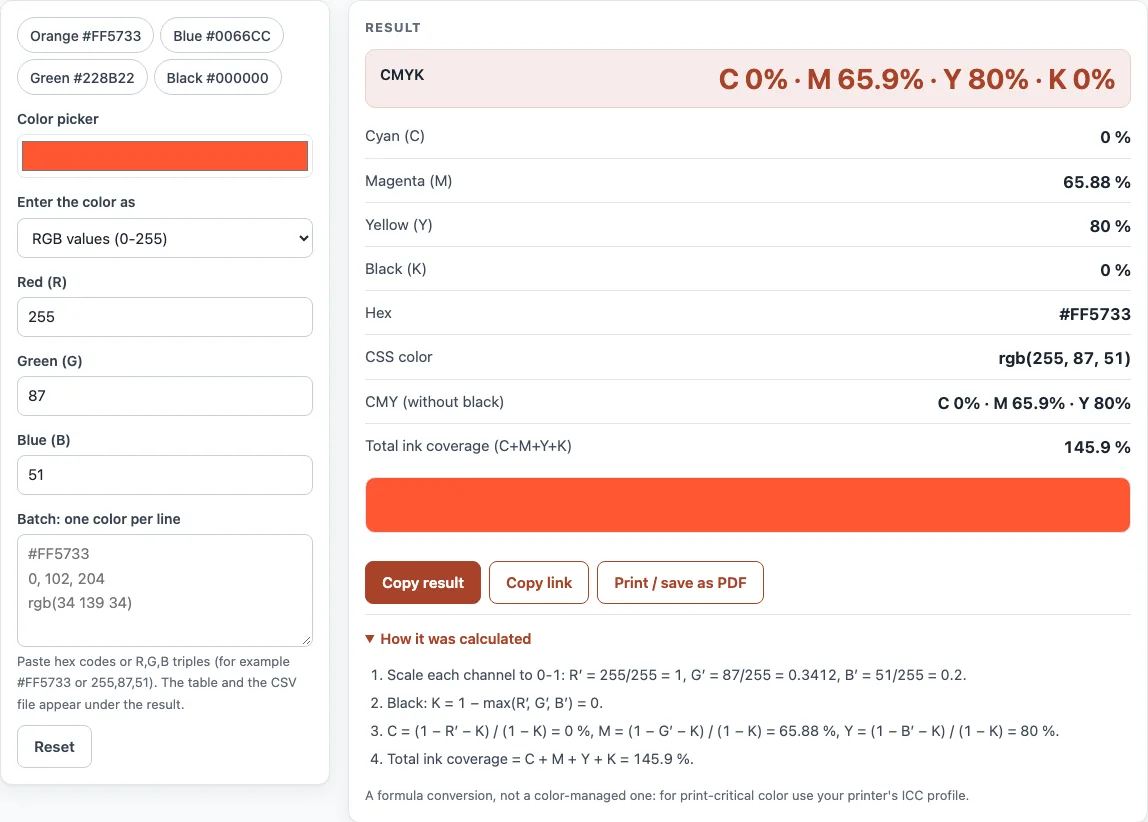
How to use the RGB to CMYK converter
- Open the “Enter the color as” control and choose “RGB values (0-255)” or “Hex code”.
- Type your color. For RGB, enter the red, green and blue numbers from 0 to 255. For hex, enter a code such as #FF5733. Shorthand works too, so #F53 becomes #FF5533.
- If you are not sure of the values, use the “Color picker” to choose a color visually.
- Read the “CMYK” headline, then check “Cyan (C)”, “Magenta (M)”, “Yellow (Y)” and “Black (K)”.
- Look at “Hex”, “CSS color”, “CMY (without black)” and “Total ink coverage (C+M+Y+K)” for more detail. Use the color swatch to compare the result with your original color.
- Use “Copy result” or “Copy link” to keep a single result.
- To convert several colors, open the “Batch: one color per line” box and enter one hex code or R,G,B list per line. The tool shows a table of the first 50 results. Click “Download CSV” to get all results (up to 2,000 colors).
Four presets are available for quick tests: “Orange #FF5733”, “Blue #0066CC”, “Green #228B22” and “Black #000000”. The batch CSV includes the input, R, G, B, hex, C %, M %, Y %, K % and total ink % columns, so you can sort or filter the results in a spreadsheet.
How to convert or transform RGB to CMYK?
RGB describes color as light from a screen, with red, green and blue values from 0 to 255. CMYK describes color as ink on paper, with cyan, magenta, yellow and black percentages. The standard formula converts one to the other by first scaling each RGB value to a fraction: R’ = R/255, G’ = G/255 and B’ = B/255.
Black (K) is found first: K = 1 - max(R’, G’, B’). The other inks are then calculated from it: C = (1 - R’ - K) / (1 - K), M = (1 - G’ - K) / (1 - K) and Y = (1 - B’ - K) / (1 - K). If K equals 1, the color is pure black and C, M and Y are all set to 0. Multiply each result by 100 to get percentages.
For example, #FF5733 (255, 87, 51) has K 0 %, C 0 %, M 65.88 %, Y 80 % and a total ink coverage of 145.9 %. The CMY values without black are 0, 65.9 and 80.
Why do converted colors look duller in print?
Screens emit light, while printed inks absorb light from white paper. Many bright RGB colors, especially vivid blues and greens, sit outside the range of colors that CMYK inks can reproduce. This range is called the gamut. The formula cannot tell whether a color falls inside the gamut, so it gives a number without warning you that the printed result will look different.
Accurate conversion requires ICC profiles for the actual paper and press. These profiles describe how a specific printer reproduces color. The formula also places all darkness into K, so a neutral gray becomes K-only, and this is not the same as a rich black used for large solid areas.
Total ink limits matter too. Commonly reported limits are 320 % for sheetfed offset on coated paper (GRACoL), 300 to 320 % for heatset web offset, and 300 % for SWOP and FOGRA39. Printers set their own limits, so ask your print provider for theirs. Printer specifications differ and change over time, so confirm final numbers against your printer’s current template before you send a file.
Sources (checked 13 October 2026): RapidTables · Wikipedia · PRINTING United Alliance
Worked examples
| Input | Result |
|---|---|
| RGB 255, 87, 51 (#FF5733) | C 0 %, M 65.9 %, Y 80 %, K 0 % |
| RGB 0, 102, 204 (#0066CC) | C 100 %, M 50 %, Y 0 %, K 20 % |
| RGB 34, 139, 34 (#228B22) | C 75.5 %, M 0 %, Y 75.5 %, K 45.5 % |
| RGB 0, 0, 0 (#000000) | C 0 %, M 0 %, Y 0 %, K 100 % |
Calculated by the tool above; open it with the same values to see each step.
Frequently asked questions
Is this the same as converting in my design software?
No. Professional design and layout programs convert with ICC profiles, so their results can differ from this formula. Use this tool for quick estimates and use your design software with the correct profile for final print color.
Why does my black show as K 100 only?
Pure black (0, 0, 0) converts to K 100 % with no cyan, magenta or yellow, which is a single ink. Many printers prefer a rich black with CMY added for large black areas, but the recipe depends on the printer, so ask them for their preferred values.
Can I convert many colors at once?
Yes. Use the “Batch: one color per line” box and enter one hex code or R,G,B list per line. The table shows the first 50 results, and “Download CSV” gives you all of them, up to 2,000 colors. Lines that the tool cannot read are flagged as invalid.
Can I convert a whole PDF or image with this tool?
No. This tool converts individual color values, not files. To check a PDF’s color and resolution, use the related tools listed below.
Why does a near-black color show total ink close to 300 %?
With this formula, total ink is highest for near-black colors with one very small channel. For example, rgb(1, 0, 0) gives 299.6 %. Pure red or blue give 200 %. The total never goes above 300 %, so the high-ink warning does not appear for single colors.
How do I convert a hex code to CMYK?
Choose “Hex code” in “Enter the color as” and type the code, with or without the #. The tool reads it as RGB (#FF5733 is 255, 87, 51) and applies the same formula, so #FF5733 gives C 0, M 65.88, Y 80, K 0.
Related tools
- DPI calculator: Use it to work out the pixel dimensions needed for a given print size and resolution.
- Print resolution calculator: Use it to check whether an image has enough resolution for the size you want to print.
- Image DPI checker: Use it to find the DPI value stored in an image file.
- PDF DPI checker: Use it to check image resolution inside a PDF before printing.
- PDF preflight check: Use it to review a PDF for common print problems before sending it to a printer.
- CMYK to RGB converter: Use it to go the other way and see how a CMYK color appears on screen.
- Book cover template generator: Use it to build a cover layout with the correct dimensions for your book.
- Paper size chart: Use it to compare standard paper sizes when planning a print job.