PDF Preflight Tool
Choose a PDF to check its page boxes and bleed, fonts, image resolution and color before you send it to print.
Recent
Your last 10 settings, saved only in this browser. Nothing is uploaded.
This free PDF preflight tool checks your PDF for print readiness, right in the browser. Pick a file or drop it on the box, and it lists pass, warning and fail results for trim size, TrimBox, bleed, embedded fonts, image resolution, color, PDF/X markers and page count. You can run this pdf preflight check without installing software or creating an account.
The tool only reads your file. It never edits, merges, splits or converts a PDF, and nothing gets uploaded, so the file stays on your device. Run it to learn whether a print ready pdf file meets your printer’s rules before you send it, or to see exactly which checks fail so you know what to fix in your layout app.
How to use the PDF preflight tool
- Expand the “Check settings” box. Choose a preset (“US print (0.125 in bleed)”, “Metric print (3 mm bleed)”, “PDF/X required” or “No bleed, RGB ok”), or type in your own values.
- Type “Target trim width” and “Target trim height” in in, mm, cm or pt. Leave both empty to skip the size check.
- Adjust “Required bleed” (0 skips the check) and the “Warn below (ppi)” and “Fail below (ppi)” limits. Defaults are 300 and 150.
- Pick “Color mode”: “CMYK required (no RGB images)” or “RGB allowed”.
- Set “Page count must be a multiple of” to “Any page count”, 2 or 4.
- Leave “Fonts must be embedded” switched on. Enable “PDF/X required” only when your printer requests it.
- Press “Choose a PDF”, or drag your file onto the box.
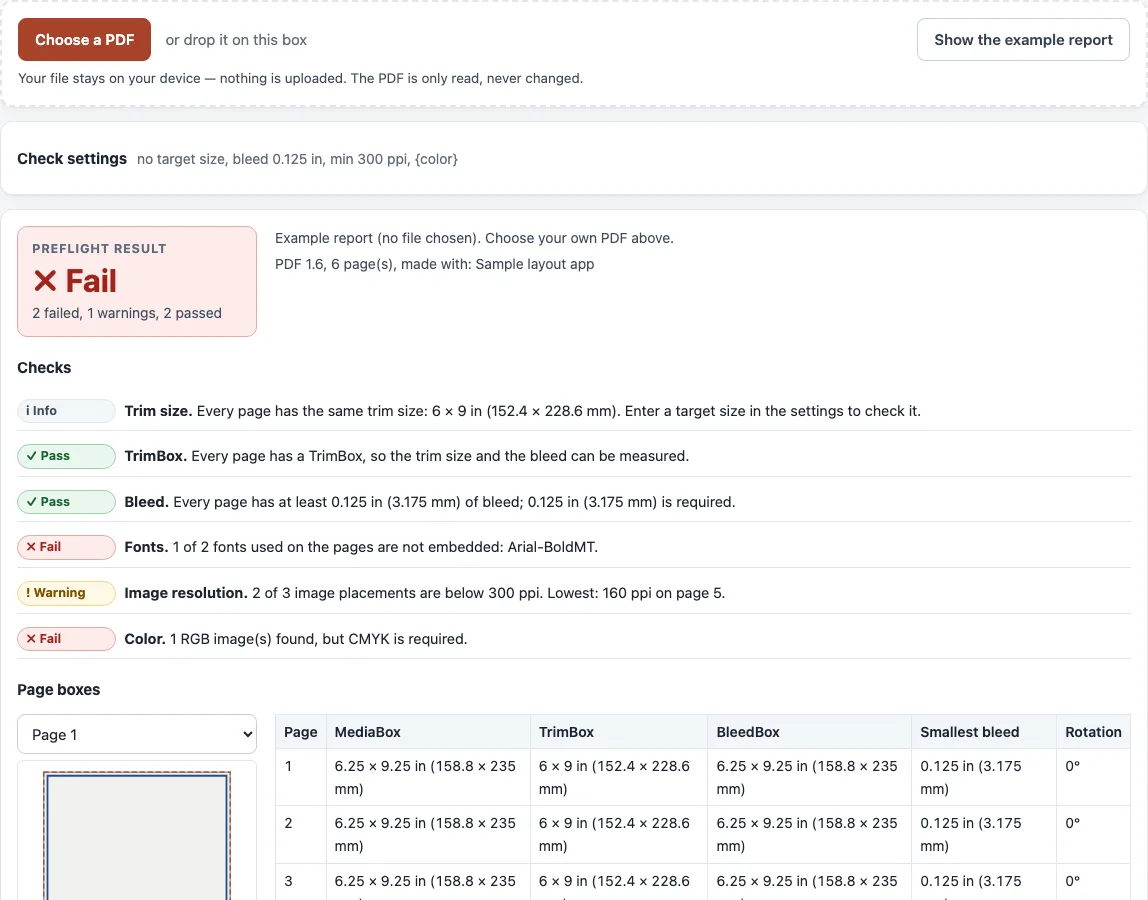
- Check the verdict (“Pass”, “Warnings” or “Fail”) and the count line, then work through the “Checks” list.
- Expand “Page boxes”, “Fonts”, “Images” and “Color” for the details behind each result.
Prior to selecting a file, “Show the example report” shows a sample report so you can see what results look like. Once you finish, “Download JSON report” saves the full report, and “Print report” opens a printable version to send to your printer. For the limits, see “What this check does not do”.
How do I make a print-ready PDF?
A print-ready PDF has the trim size you need, bleed, embedded fonts, enough image resolution and the color mode your printer asks for. Export at the trim size, add bleed (KDP, IngramSpark and Lulu all ask for 0.125 in, about 3.18 mm; many metric printers ask for 3 mm), embed or outline fonts, keep images at 300 ppi at their placed size, and then run this check. Printer specifications differ and change, so confirm final numbers with your printer’s current template.
What does a PDF preflight check look at?
Professional PDF software includes preflight profiles with hundreds of checks. This page is a free browser check of the facts that most often stop a print job: page boxes and bleed, fonts, image resolution, color and PDF/X markers. It does not render, fix or convert the PDF, so use it to see what needs attention, then correct the source file and export it again.
Is there free PDF preflight software?
Yes, this tool is free and runs in your browser. Nothing is uploaded and there is no sign-up. Its limits are listed on the page: it does not render the file, check overprint or knockout, check transparency flattening, measure ink coverage, or check annotation and form appearances.
What does print-ready mean?
Print-ready means the PDF contains what a printer needs to produce the job without guesswork. In practice that covers the right trim size and bleed, embedded fonts, images with enough effective resolution, and the color mode the printer wants. Effective resolution is the image’s pixel width divided by its placed width in inches: a 2000 px image placed 6 in wide gives 333 ppi, and placed 14 in wide it gives 142.9 ppi, so the same image can pass at one size and fail at another. For a 6 x 9 in book page with 0.125 in bleed, the MediaBox is 6.25 x 9.25 in (450 x 666 pt) and the TrimBox is 9, 9 to 441, 657 pt.
How do I convert a PDF to print-ready?
This tool cannot convert a PDF. It only checks, so it will not add bleed, embed fonts or change color. Fix the source file in your layout app, export it again with your printer’s preset, and then run the check on the new file.
Can I check a PDF exported from any design app?
Yes. If your design app offers a print PDF export with bleed or crop marks, use those export settings and then check the file here. Match the bleed and trim size your printer asks for. The check on the exported file shows whether it meets your settings, but it cannot confirm how any app builds its output.
Sources (checked 13 October 2026): opensource.adobe.com · stationeryhq.com · creative-printing.com · aps.edu · ISO
Worked examples
| Input | Result |
|---|---|
| Sample: 5 × 7 in print-ready file; target 5 × 7 in; bleed 0.125 in; ppi warn/fail 300/150 | Pass: 7 passed, 0 warning(s), 0 failed |
| Sample: 6 × 9 in office export; target 6 × 9 in; bleed 0.125 in; ppi warn/fail 300/150 | Fail: 1 passed, 1 warning(s), 4 failed |
| Sample: 6 × 9 in book interior; target 6 × 9 in; bleed 0.125 in; ppi warn/fail 300/150 | Fail: 3 passed, 1 warning(s), 3 failed |
| Sample: 6 × 9 in book interior; target no target size; bleed 0.125 in; ppi warn/fail 200/100 | Fail: 3 passed, 1 warning(s), 1 failed |
| Sample: 5 × 7 in print-ready file; target 127 × 178 mm; bleed 3 mm; ppi warn/fail 300/150 | Pass: 6 passed, 0 warning(s), 0 failed |
Calculated by the tool above; open it with the same values to see each step.
Frequently asked questions
Is my PDF uploaded anywhere?
No. The file is read in your browser and stays on your device.
Does the tool change my PDF?
No. It only reads the file and never edits, merges, splits or converts it.
What is the difference between a warning and a fail?
A fail means a check did not meet its requirement, such as a font that is not embedded. Warnings flag a result that needs review, such as an image between the warn and fail limits. Landing exactly on a limit still passes.
What is a TrimBox and why does it matter?
The TrimBox marks the finished page inside the PDF, and the BleedBox marks the area printed beyond it. Without a TrimBox the tool cannot tell trim from bleed, so it measures the CropBox or MediaBox instead and warns you. Most layout programs set both boxes when you export with bleed.
Why does my PDF fail the color check?
With “CMYK required (no RGB images)”, any RGB image fails. Convert images to CMYK with your printer’s profile and export again, or choose “RGB allowed” if your printer accepts RGB files.
Why is the default fail limit 150 ppi?
150 ppi is this tool’s own editable default, not a printing standard. The 300 ppi figure is the usual minimum quoted for print images, so set the limits to match the numbers your printer gives.
Related tools
- DPI calculator: figure out how many pixels an image needs to print at a chosen size.
- Print resolution calculator: see the effective ppi an image will have at your planned print size.
- Image DPI checker: read the resolution of an image file before it goes into a layout.
- PDF DPI checker: review the effective resolution of every image placed inside a PDF.
- RGB to CMYK converter: switch color values from RGB to CMYK if your printer asks for CMYK.
- CMYK to RGB converter: turn CMYK colors into RGB values for on-screen display.
- Book cover template generator: produce a cover layout sized to the dimensions your print job requires.
- Paper size chart: look up standard paper sizes to pick a target trim size.