PDF DPI Checker
Choose a PDF to see the effective resolution of every image at the size it is placed, lowest first.
Recent
Your last 10 settings, saved only in this browser. Nothing is uploaded.
The PDF DPI checker reads a PDF file and reports the effective resolution, in pixels per inch (ppi), of every image placed on its pages. It is also known as a pdf resolution checker, and it shows the size each image is printed at, so you can see which images will look soft in print. Everything runs in your browser, nothing is uploaded, there is no sign-up, and the tool is free to use.
The check works on the PDF itself. It does not look at the resolution tag stored in the original image file, because a PDF only records pixel dimensions and the size each image is placed at. The tool lists every image placement with a pass, warning or fail verdict, so you can find the weakest image quickly and fix it before sending the file to a printer.
How to use the PDF DPI checker
- Click “Choose a PDF” and select the PDF you want to check. Your file stays on your device.
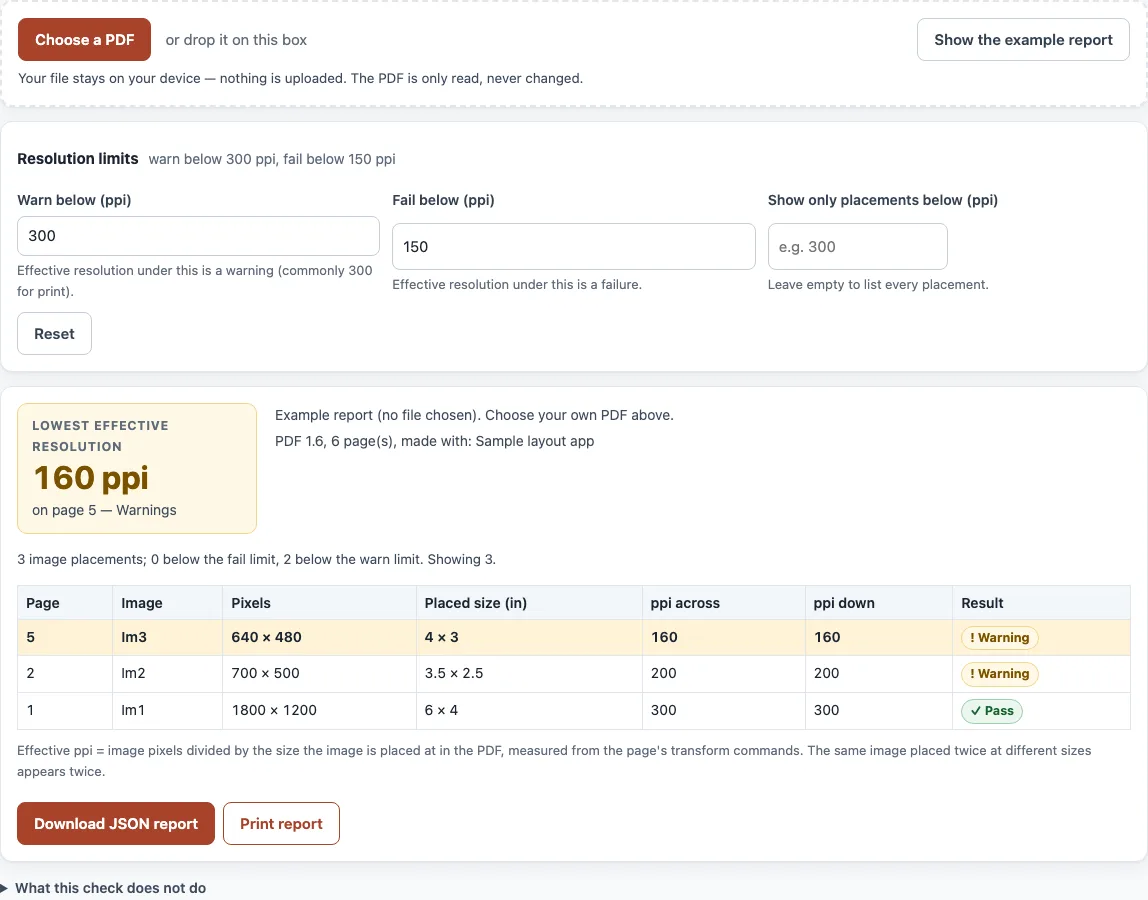
- Read the big number “Lowest effective resolution”. It shows the weakest image placement and the page it is on. Its row is highlighted in the table.
- Scan the table. Each row shows the Page, Image, Pixels, Placed size (in), ppi across, ppi down and Result columns.
- Check the summary line, which reads “N image placements; N below the fail limit, N below the warn limit. Showing N.”
- If you want different thresholds, open the “Resolution limits” details box. “Warn below (ppi)” defaults to 300 and “Fail below (ppi)” defaults to 150. Change either value and the verdicts update.
- To narrow the list, type a number into “Show only placements below (ppi)”. Leave it empty to show all placements. The placeholder reads “e.g. 300”.
- If the tool shows “No images found”, the PDF has no raster images to measure. If it shows “No image placement is below that resolution.”, your filter is set below every image’s ppi.
To see how a report looks before you use your own file, click “Show the example report”. When you need a record, click “Download JSON report” to save the results, or “Print report” to print them.
How do I check the DPI of images in a PDF?
Open the PDF in the tool and look at each image placement. The tool computes the effective ppi for each one, because a PDF does not store a dpi number. Effective ppi is the pixel width divided by the printed width in inches, and the same calculation is done for height.
PDF user space uses 1/72 inch per unit, called a point. So a placed width in points is divided by 72 to get inches. For example, 600 pixels placed at 288 points (4 inches) gives 150 ppi. The tool takes the lower of the across and down values as the row’s ppi.
What resolution should images in a print PDF have?
Most printer guides quote 300 ppi at final size as the usual minimum for photos and artwork. This tool uses 300 as its default warn limit for that reason. Printers differ, and their specifications change, so confirm the final numbers with your printer’s current template.
A lower ppi can be acceptable for large items viewed from a distance, such as posters. That is why both limits can be edited in “Resolution limits”.
Why is my PDF’s dpi different from the image’s dpi?
The dpi tag inside an image file is ignored when the image is placed in a PDF. Only the pixel count and the size at which the image is placed count. The same image can have a high ppi at one size and a low ppi when it is scaled up.
Stretching an image also changes the result. A 1200 × 800 pixel image placed at 360 × 120 points gives 240 ppi across and 480 ppi down. The tool uses the lower value, 240.
Rotation does not change ppi. A 90-degree transform places the image at the same size, only turned.
Can I raise the dpi in the PDF?
No. Resampling an image to a higher number adds no real detail, so the sharpness stays the same. To raise the ppi, use a larger source image or place the image at a smaller size. This tool does not edit PDFs.
Does a PDF resolution checker measure vector art?
No. Vector art has no resolution, so it is not listed. Only raster images are measured, including inline images written in the page content with BI, ID and EI operators. Images that are listed in a page’s resources but never drawn have no placement, so they do not appear as rows.
Sources (checked 13 October 2026): aps.edu · stationeryhq.com · opensource.adobe.com
Worked examples
| Input | Result |
|---|---|
| Sample: 6 × 9 in book interior; warn below 300 ppi, fail below 150 ppi | Lowest 160 ppi on page 5: Warnings |
| Sample: 5 × 7 in print-ready file; warn below 300 ppi, fail below 150 ppi | Lowest 300 ppi on page 3: Pass |
| Sample: 6 × 9 in office export; warn below 300 ppi, fail below 150 ppi | Lowest 133.3 ppi on page 3: Fail |
| Sample: 6 × 9 in book interior; warn below 300 ppi, fail below 200 ppi | Lowest 160 ppi on page 5: Fail |
Calculated by the tool above; open it with the same values to see each step.
Frequently asked questions
What do the pass, warning and fail results mean?
An image placement below the fail limit (150 ppi by default) is marked fail. One below the warn limit (300 ppi by default) is marked warning. An image exactly on a limit passes.
Why does one image appear in several rows?
The same image placed several times on a page or across pages gives one row per placement. Each placement can have a different size, so each one can have a different ppi.
Can I change the warn and fail limits?
Yes. Open “Resolution limits” and edit “Warn below (ppi)” or “Fail below (ppi)”. For example, the book interior sample has a 160 ppi row, which is a warning at the default limits but a fail when “Fail below (ppi)” is set to 200.
Does the tool change my PDF or upload it?
No. Your file stays on your device and nothing is uploaded. The PDF is only read, never changed.
What does the check not examine?
The tool does not render pages, so it reads geometry only and does not judge image quality, JPEG artifacts or upscaling already done in the source file. It does not examine Type 3 glyph images or annotation appearances, and it cannot read inside encrypted PDFs.
Related tools
- DPI calculator: use it to work out the pixels you need for a given print size and resolution.
- Print resolution calculator: use it to check whether an image is sharp enough at a chosen print size.
- Image DPI checker: use it when you have an image file rather than a PDF.
- PDF preflight check: use it for a broader set of print checks on the same PDF.
- RGB to CMYK converter: use it when your images need converting to CMYK before printing.
- CMYK to RGB converter: use it when you need to convert CMYK colors back to RGB for screen use.
- Book cover template generator: use it to create a cover file with the correct dimensions.
- Paper size chart: use it to look up standard sheet sizes before you set up a layout.