Image DPI Checker
Choose or drop images to see their pixel size, the DPI stored in the file and the print size it gives.
Recent
Your last 10 settings, saved only in this browser. Nothing is uploaded.
How to use the image DPI checker
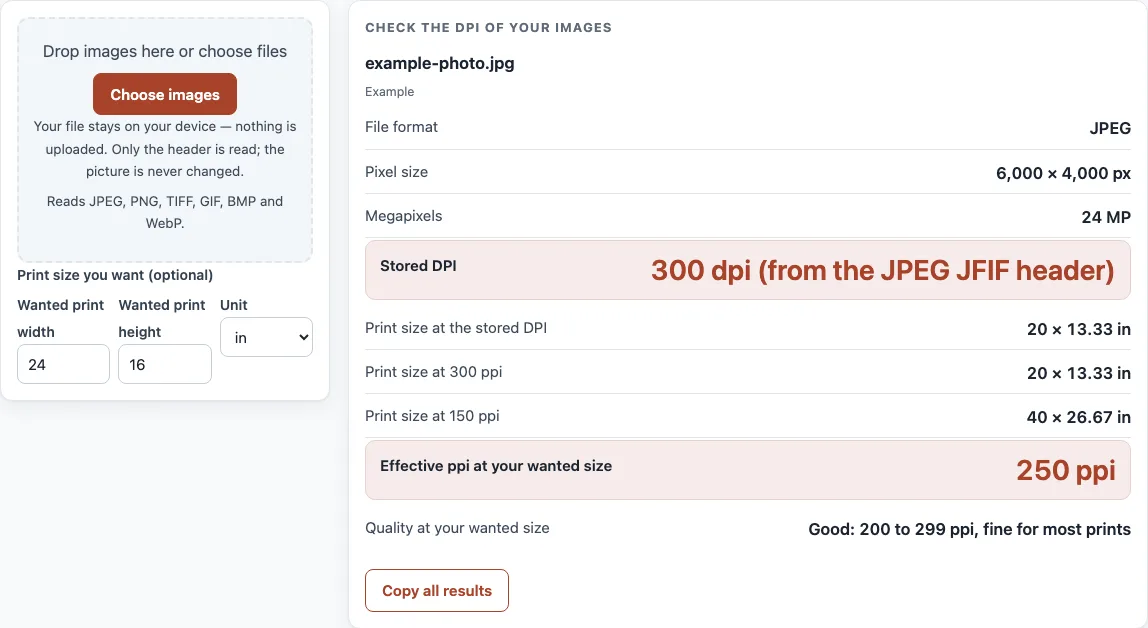
- Look at the sample card, “example-photo.jpg” (6,000 x 4,000 px, 300 dpi, target 24 x 16 in = 250 ppi). It shows before you choose any file, so you can see what the results look like.
- Click “Choose images”, or drag your files onto the area marked “Drop images here or choose files”. You can add up to 50 files per drop.
- For each file, read “File format” and “Pixel size”.
- Check “Stored DPI”. It shows where the value came from. If it says “Not stored. Any 72 or 96 your software shows is just its default.”, the file has no DPI value.
- Compare “Print size at the stored DPI”, “Print size at 300 ppi”, and “Print size at 150 ppi”.
- Optional: fill in “Print size you want (optional)” with a width and height, and pick in, cm, or mm. Then read “Effective ppi at your wanted size” and “Quality at your wanted size”. If the shape of your target differs from the image, a warning appears.
- Click “Copy all results” to copy the output, or “Clear files” to start again.
Each result is calculated in your browser, so you can check a batch of files in one pass. Use “Copy all results” to paste the numbers into your own notes or a message to your printer.
How can I check the DPI or PPI of an image?
Choose or drop the image on this page and read “Stored DPI”, then “Pixel size”. The stored DPI tells you the print size the file was saved for; the pixel size tells you what it can really do. Divide the pixel width by 300 to get the widest print at 300 ppi: a 3,000 px wide image prints sharply up to 10 inches wide.
How do I find out, see or know the DPI and PPI of an image file?
DPI is a label stored in the file’s header, not a property of the picture itself. This tool reads it from the JPEG JFIF header, Exif data, PNG pHYs chunk, TIFF resolution tags, BMP header, or WebP EXIF chunk. Resolution can be stored as dots per inch, dots per centimeter, or pixels per meter. To convert, multiply dots per centimeter by 2.54, or pixels per meter by 0.0254. For example, 11,811 px/m equals 300.0 dpi. If a JPEG holds both JFIF and Exif values, the JFIF value is used when it has real units, and a conflict warning appears if the two differ.
Why does my image say 72 dpi?
A stored value of 72 is a common software default. It does not measure quality, and it does not tell you how sharp the image will look. The tool flags it as a common software default for that reason. The value 96 often appears for a similar reason, because CSS defines 1 in as 96 px.
Does changing DPI change quality?
No. Changing the DPI label never changes the pixels. Print size is found by dividing pixel count by DPI. A 4,000 x 3,000 px image storing 72 dpi prints at 55.56 x 41.67 in at that stored value. If you print it at 8 x 6 in, the effective resolution is 500 ppi, and the pixels are the same as before. The quality band shown for your wanted size follows the same bands as the DPI calculator.
A digital image has no fixed physical size. A PPI tag only states the intended print size. For example, 1,000 px printed at 250 PPI measures 4 in, while the same 1,000 px at 100 PPI measures 10 in.
Sources (checked 13 October 2026): Wikipedia · Library of Congress · W3C · Wikipedia (2) · developers.google.com · W3C (2)
Worked examples
| Input | Result |
|---|---|
| 6000 × 4000 px file storing 300 dpi | 250 ppi at 24 × 16 in |
| 1920 × 1080 px file storing no DPI | 192 ppi at 10 × 5.625 in |
| 4000 × 3000 px file storing 72 dpi | 500 ppi at 8 × 6 in |
| 2480 × 3508 px file storing 300 dpi | 300 ppi at 210 × 297 mm |
Calculated by the tool above; open it with the same values to see each step.
Frequently asked questions
How do I check the DPI of an image without this tool?
On Windows, right-click the file, open Properties and look at Horizontal and Vertical resolution on the Details tab. On a Mac, open the file in Preview and choose Tools > Show Inspector, which lists Image DPI. Both show the same stored label this checker reads.
What if no DPI is shown?
The file stores no DPI, which is common for screenshots, WebP, and GIF files. Divide the pixel size by the size you plan to print instead. For example, 1,920 x 1,080 px printed at 10 x 5.625 in gives 192 ppi.
Can I change the DPI of an image here?
No. This checker only reads files. Changing the DPI label in an image editor does not add pixels anyway; it only changes the print size the file suggests.
Can I check a photo online privately?
Yes. Your file stays on your device, nothing is uploaded, and no sign-up is needed.
Which image types can I check?
The tool reads JPEG, PNG, TIFF, GIF, BMP, and WebP files. BigTIFF, HEIC, AVIF, SVG, and PDF are not supported, and you will see “This file type is not supported…”. It reads only the first image in a file and ignores embedded thumbnails and extra frames.
Related tools
- DPI calculator: Use it to work out the pixels, DPI, or print size when you know two of the three.
- Print resolution calculator: Use it to check how many pixels you need for a planned print size.
- PDF DPI checker: Use it to check the resolution of images inside a PDF file.
- PDF preflight check: Use it to review a PDF for print issues before you send it to a printer.
- RGB to CMYK converter: Use it to convert color values from RGB to CMYK for print.
- CMYK to RGB converter: Use it to convert color values from CMYK back to RGB for screens.
- Book cover template generator: Use it to set up a cover layout before you check its image resolution.
- Paper size chart: Use it to compare standard paper sizes with your target print size.